

Professional polish for Canva-based designs.

Why Canva Designs Look Perfect… Until They Don’t
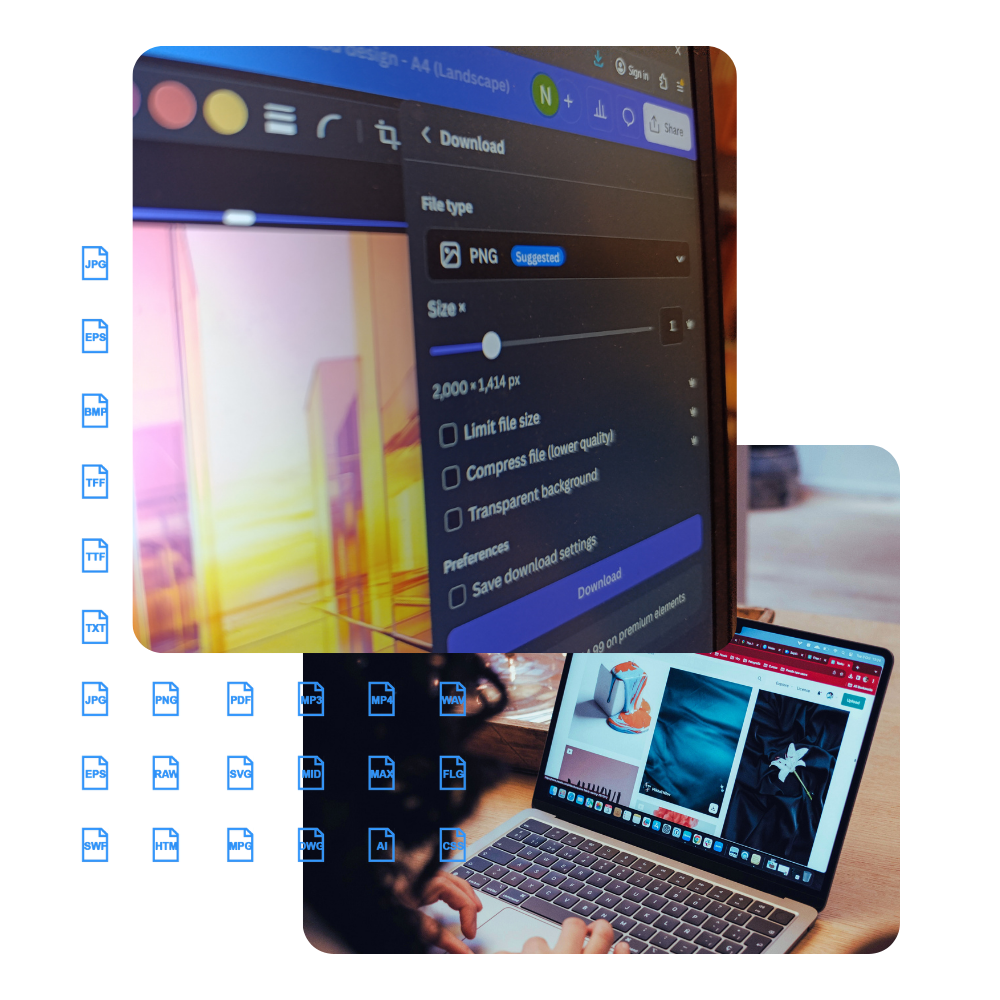
Here’s what most people aren’t told: Canva is built for speed and simplicity. It’s optimized for screens, social media, and fast creation. But when you download, resize, or print a design, the file gets locked into a format that may not carry enough detail for what you need next.
That quality drop isn’t a skill issue. It’s not a creativity issue. It’s simply how the tool works.
The good news? It’s fixable.
Start Here
-
Why Your Canva Design Feels “Off” (And How to Clean It Up Without Starting Over)
If your Canva design looks off but you can’t explain why, a quick cleanup can fix it. Learn the simple steps that instantly improve Canva designs.
-
Fix Blurry Canva Images for Print (And Why It Happens in the First Place)
It looked perfect on screen – until it came back blurry from the printer. If you’re trying to fix blurry Canva images for print, this guide explains exactly why it happens and how to improve print quality in Canva so your next design looks sharp on paper.
-
Raster vs Vector for Canva Users (Without the Design Degree)
Confused about raster vs vector in Canva? Learn why your logo gets blurry when resized and when a vector file actually matters.


Why this site exists
Design shouldn’t fall apart the moment you export it.
Too many Canva users assume blurry prints, awkward proportions, or strange formatting are part of the process. They aren’t. Most problems come down to small structural decisions that were never explained clearly.
This site exists to give you that clarity — so your work looks just as professional outside Canva as it does inside it.