

Why Your Canva Design Feels “Off” (And How to Clean It Up Without Starting Over)
You know the moment.
You’ve spent time on a design. The colours look good. The text is readable. The layout technically works.
And yet… something feels off.
Not terrible.
Not broken.
Just… not polished.
You stare at it a little longer, hoping the problem will reveal itself.
Maybe the spacing feels strange.
Maybe the headline looks slightly awkward.
Maybe the design just feels heavier than it should.
However, nothing clearly jumps out as the issue.
So you try adjusting things.
You move an element slightly.
You change a colour.
You swap a font.
And somehow the design still looks… almost right.
If this happens to you in Canva, you’re not imagining it. That quiet sense that something isn’t quite working is incredibly common – even for experienced designers.
The good news is that this problem rarely means the design is bad.
Most of the time, the layout is already close to working.
It simply needs a little cleanup.
And once you understand where that subtle “off” feeling comes from, fixing it becomes surprisingly fast.

The Quiet Tension Inside Cluttered Designs
When a design feels slightly uncomfortable to look at, your brain is usually reacting to small inconsistencies.
Nothing dramatic.
Nothing obviously wrong.
Instead, the design contains several tiny visual decisions that aren’t quite working together yet.
For example, a headline might sit slightly closer to one element than another. Two colours might almost match – but not quite. A decorative shape might compete with the main message instead of supporting it.
Individually, these choices often look harmless.
However, when several of them appear in the same layout, they begin to create a kind of visual tension.
Your eyes keep scanning the page, looking for a clear structure. When that structure isn’t obvious, the brain quietly keeps searching for order.
As a result, the design feels unsettled.
This is why a layout can look “fine” at first glance but still feel unfinished when you look at it longer.
Nothing is technically broken.
However, the design hasn’t been simplified and organized yet.
In other words, it hasn’t gone through its cleanup phase.
And this is where many beginners accidentally get stuck. Instead of cleaning the design, they start rebuilding it from scratch – which often introduces even more visual decisions.
In reality, most designs don’t need to be rebuilt.
They just need a little editing.
The Real Reasons Canva Designs Start Feeling Messy
Design clutter rarely appears because of one big mistake.
Instead, a few small decisions slowly accumulate as the design evolves.
Each choice makes sense in the moment. However, when enough of them stack together, the layout begins to feel busy or slightly chaotic.
Let’s look at the most common causes.
Too many fonts
Fonts carry personality. Because of that, Canva makes it very easy to experiment with them.
You might start with a clean headline font. Then you find another font that feels perfect for quotes. Then perhaps a third font appears that seems ideal for smaller captions.
Each one looks interesting on its own.
However, every additional font introduces a new visual voice.
When too many voices start speaking at the same time, the design begins to lose its rhythm. The page no longer feels unified.
Instead, it feels slightly noisy.
In most layouts, two fonts create a comfortable balance – typically one for headlines and one for body text.
Three fonts can work in some situations, especially for posters or creative layouts. However, beyond that point the design often begins to feel crowded.
Reducing font variety is one of the fastest ways to calm a design.
Too many colours
Colour is one of the most powerful tools in design.
However, it’s also one of the easiest places for clutter to sneak in.
A palette often begins with two or three colours. Then a slightly different shade appears in an illustration. Then another colour gets added for emphasis. Soon a few more tones appear in icons or background shapes.
Individually, every colour may look beautiful.
However, when the palette becomes too wide, the design begins to feel scattered rather than unified.
As a result, the viewer’s brain now has to process many visual signals at once.
In contrast, a tight colour palette creates a sense of calm and intention. Even simple designs begin to look more polished when the colours clearly belong to the same family.
Sometimes the difference between a messy design and a clean one is simply one less colour.
Inconsistent spacing
Spacing is one of the most overlooked design tools.
Unlike colour or typography, spacing is almost invisible when it works well.
However, when spacing becomes inconsistent, the brain starts to notice something is wrong – even if you can’t immediately explain why.
For example, one headline might sit very close to its paragraph, while another headline has a large gap below it. A text block might feel comfortably placed in one section, but slightly cramped in another.
These small differences create subtle friction.
The eye has to keep recalculating where each section begins and ends.
In contrast, consistent spacing quietly organizes the page. The layout begins to feel calm, structured, and easy to read.
Misaligned elements
Alignment acts like the invisible skeleton of a design.
When elements line up along shared edges or center lines, the layout immediately feels structured and stable.
Even a simple design can look surprisingly professional when everything aligns cleanly.
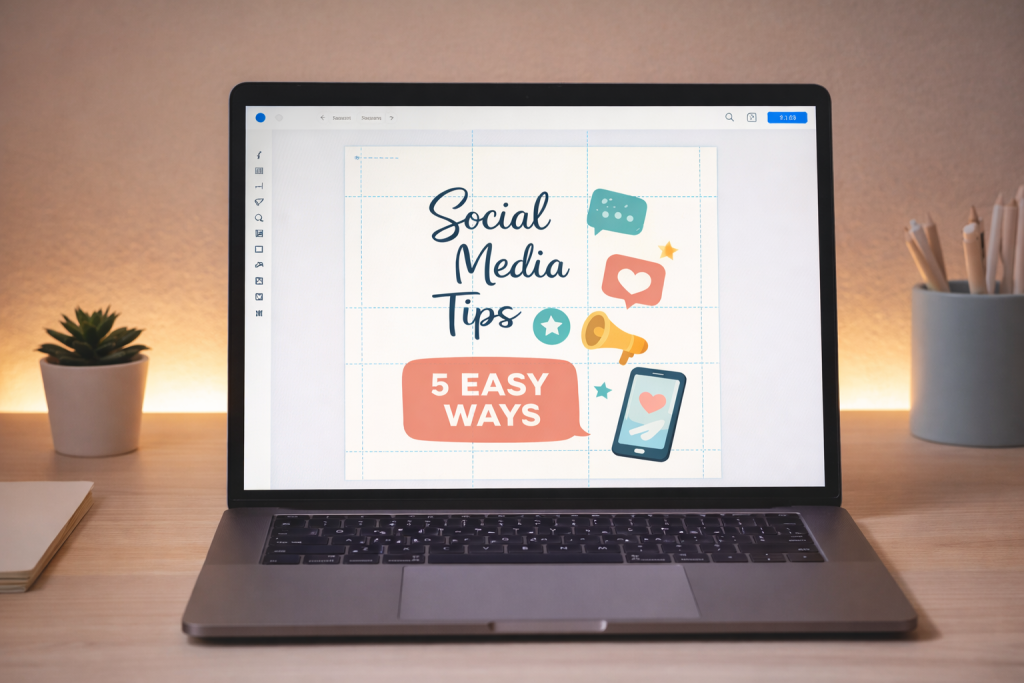
However, when elements drift slightly out of alignment, the page begins to feel unstable.
Maybe a text block sits a few pixels off from an image edge. Maybe a button looks centered, but isn’t quite aligned with the headline above it.
These tiny misalignments are easy to miss while designing.
Yet when several of them appear together, the overall layout begins to feel messy.
Fortunately, alignment is also one of the fastest things to fix.
Overused effects
Effects like shadows, outlines, glows, and gradients can add depth and personality to a design.
However, they work best when used selectively.
When every element receives an effect, the design begins to lose hierarchy. Everything competes for attention at the same time.
The viewer’s eye no longer knows where to focus first.
As a result, the layout starts to feel visually noisy.
In contrast, when effects appear sparingly, they naturally highlight the most important parts of the design.
Used thoughtfully, they guide the viewer’s attention rather than distracting from it.
The 5-Minute Canversion Cleanup
Here’s the part that surprises many people.
When a design feels messy, the instinct is often to start over. It can feel easier to rebuild the whole layout than to figure out what’s wrong.
However, in most cases the design is already close to working.
It simply needs a short cleanup pass.
Think of this as the five-minute reset – a quick editing sweep that removes visual clutter and brings the layout back into balance.
You are not redesigning anything.
You are simply simplifying what is already there.
Remove one font
Start by looking at the fonts used in your design.
If you see three or four different typefaces on the page, choose the least important one and replace it with a font that already appears elsewhere in the layout.
This single change often makes a surprising difference.
When the number of fonts decreases, the design immediately feels calmer and more cohesive. The viewer’s eye no longer has to adjust to a new typographic “voice” every few seconds.
Most polished designs use two fonts: one for headlines and one for body text.
Once those two roles are clear, the entire layout starts to feel more intentional.
Reduce one colour
Next, take a moment to scan the colours used in the design.
Designs often begin with a small palette, but over time extra colours quietly slip in through icons, illustrations, or decorative shapes.
Look for a colour that appears only once or twice and replace it with a colour that already exists in the palette.
This small adjustment tightens the colour system and helps the design feel more unified.
A simplified palette also helps the viewer understand the layout more quickly. Instead of processing many colours at once, their eyes can focus on the message itself.
Sometimes removing just one colour is enough to make the entire design feel more polished.
Align everything to something
Now look for elements that feel like they are “floating.”
This often happens when objects have been moved around during the design process. A text box shifts slightly to the left. An image sits a few pixels lower than the headline beside it.
Individually, these small movements are easy to miss.
However, when several elements sit slightly out of alignment, the page begins to feel visually unstable.
This is where Canva’s alignment tools become extremely helpful.
Select elements and align them with the page center, the edge of another object, or a shared grid line. Once several elements begin sharing the same alignment points, the design suddenly feels more structured.
Alignment quietly creates order.

Increase the white space
Beginners often feel the urge to fill every empty corner of a design.
However, empty space is not wasted space.
In fact, white space is one of the most powerful tools in design.
When elements have room to breathe, the viewer’s eye can move comfortably across the page. Sections feel distinct. Important information stands out naturally.
Try slightly increasing the spacing between sections, text blocks, or images.
Even small adjustments can create a noticeable difference.
Instead of feeling crowded, the design begins to feel calm and balanced.
Remove one unnecessary element
Finally, step back and look at the layout as a whole.
Ask yourself a simple question: Does every element on this page have a clear job?
If you notice a decorative flourish, extra icon, or background shape that doesn’t contribute to the message, try removing it.
Design often improves through subtraction.
When one unnecessary element disappears, the remaining elements gain more clarity and focus.
This is why many professional designs look simple.
They are not lacking creativity – they have simply been carefully edited.
Why Cleanup Improves Design Quality Everywhere
Beyond aesthetics, cleanup does more than make a design look nicer on your screen.
It also improves what happens when the design moves into the next stages of the process.
For example, clean designs tend to export more predictably. When a layout contains fewer overlapping effects, shadows, and competing visual elements, Canva can render the file more cleanly during export. If you regularly download designs from Canva, it’s also helpful to understand the best export settings for Canva, which can prevent blurry images and unexpected formatting issues.
This means fewer surprises when the design becomes a PNG, PDF, or presentation slide.
Cleanup also improves print reliability.
When spacing is consistent and alignment is clear, the design translates more accurately onto paper. Margins remain balanced, text remains readable, and important elements stay exactly where they should be.
This becomes especially important when preparing files for physical printing. Our guide on how to prepare Canva designs for print walks through the key settings that keep printed designs sharp and professional.
However, the biggest improvement is communication.
A clean design creates clear visual hierarchy. In other words, it tells the viewer exactly where to look first, second, and third.
The headline stands out.
Supporting information follows naturally.
Decorative elements support the message rather than competing with it.
As a result, the viewer understands the design almost instantly.
Instead of working to interpret the layout, their attention flows smoothly through it.
This is what makes a design feel polished.
Not because it is complex, but because everything works together with quiet clarity.
When a layout is simplified and structured properly, the overall design quality improves immediately. If you want to go deeper into this concept, our guide on how to recognise quality in designs explains what separates polished layouts from average ones.
Once you understand how cleanup improves a design, the next question becomes obvious: what do polished designs actually do differently?
What Clean Designs Actually Do Differently
At first glance, polished designs can look almost effortless. However, that apparent simplicity usually comes from careful editing.
The colours feel calm.
The layout feels balanced.
Nothing seems crowded or confusing.
Because of this, it’s easy to assume professional designs are created by people who simply have a natural eye for aesthetics.
However, that’s rarely the real reason.
Most strong designs look clean because they have gone through several editing passes. Each pass removes small bits of visual noise and strengthens the structure of the layout.
In other words, professional designers rarely stop at the first version.
They simplify.
They tighten the colour palette.
They adjust spacing.
They remove unnecessary elements.
Little by little, the design becomes clearer.
For this reason, cleanup is such an important part of the design process. It transforms a layout from something that simply “exists” into something that communicates confidently.
And the encouraging part is this: cleanup is a skill that improves quickly with practice.
Once you start recognizing clutter patterns, you’ll notice them almost instantly in your own designs.
A Quick Self-Check for Your Next Canva Design
As you work on future designs, it can help to pause for a quick visual check before exporting or sharing your work.
Ask yourself a few simple questions:
- Are the fonts consistent and intentional?
- Does the colour palette feel focused?
- Do elements align clearly with each other?
- Is there enough breathing room between sections?
- Does every element serve a purpose?
If the answer to most of these questions is yes, the design will usually feel clean and balanced.
If something still feels slightly off, it simply means the layout may need another small cleanup pass.
Design improvement often comes from small adjustments rather than dramatic changes.
A few thoughtful edits can transform an almost-good design into one that feels polished and confident.
The Simple Truth About Messy Designs
Here’s the part many people find reassuring.
A messy design doesn’t mean you are bad at design.
It usually means the design simply hasn’t been edited yet.
Creative work naturally becomes messy during the building phase. Ideas expand. Elements move around. New colours or fonts appear as you experiment.
This is part of the process.
The cleanup phase is where everything settles into place.
Think of it less like fixing mistakes and more like polishing something that already works.
With practice, cleanup becomes faster and more intuitive. Instead of wondering why a design feels off, you begin to recognize the small signals that guide you toward better structure.
Over time, your designs start reaching that polished feeling much sooner.
And often, all it takes is five calm minutes of thoughtful editing.